Adding a destination or intermediate point
Route points can be added from the map or the route planning panel.
From the map
Right-clicking anywhere on the map displays the point's information panel. In the panel, click Add Point to Route Plan. The point is then added to the plan you are editing, or if it was not, the route planning panel appears with a new route plan.
From the panel
In the route planner panel, you can add a new route point by clicking + Add destination . The data sheet for adding the point is displayed. Here we need to specify the position of the new point - we have several options for this:
- Enter an address
- Choice of our means (its current location)
- Selection from our POI register (position of a POI)
- Enter coordinates
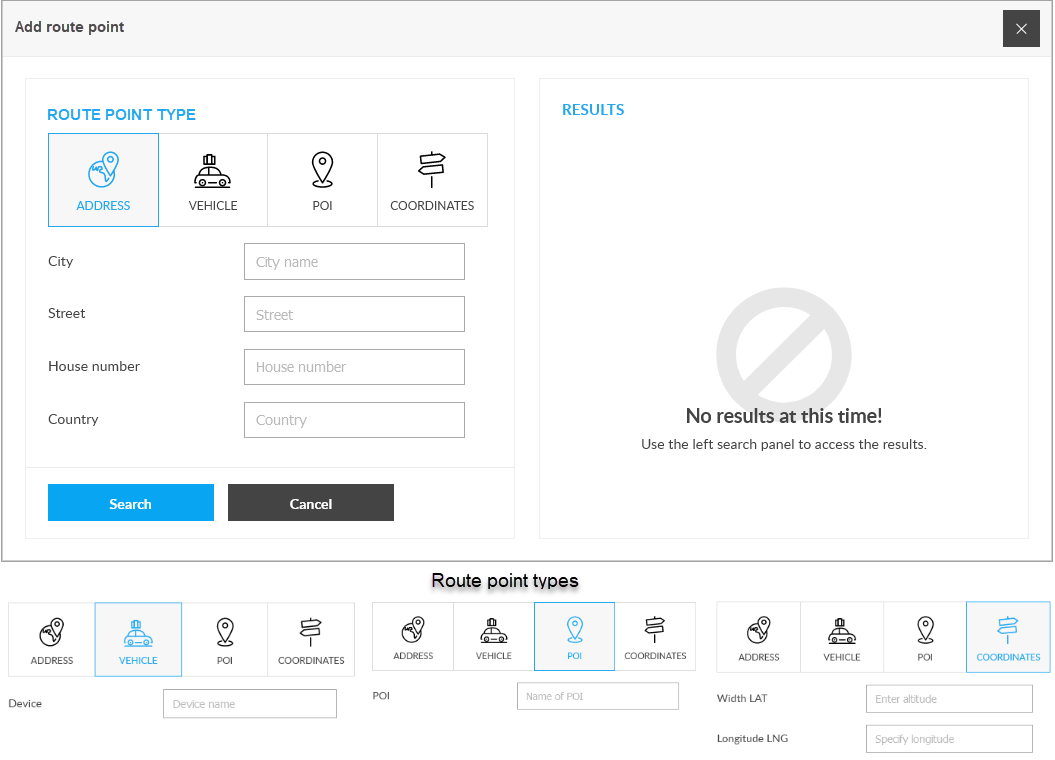
Entering an address, selecting a device or POI and after clicking the Search button, the system will display the position of the entered address or the selected device / POI in the right-hand result list (you can select a device or POI from the drop-down list or by entering the name or a part of it in the field, you can search for it with the system).
By clicking on the > icon next to the result, the point is entered into the route plan