Query route
A route is a trip taken by a device during a specified period of time. The route of the selected device can be queried using the Route icon in the device menu.
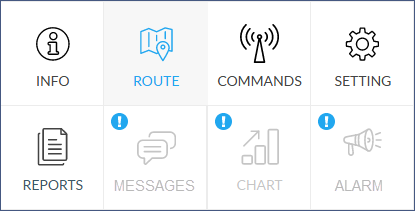
Query parameters
Clicking the icon displays the route query panel where you can set the query parameters. After performing the query, the system draws the route on the map and displays its data in the route panel.
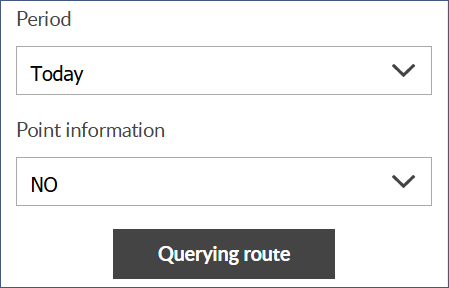
Period
From the drop-down list, select the appropriate time period for us. When using the Other option, you can set any time period. Default setting: Today (0-24). If the preset time periods do not match, you can enter any date and time interval using the Other option.
Data point information
If set to „Yes”, the GPS position submission points that make up the route will also appear in both the route panel and the map.
This setting can significantly extend the time it takes to process your query!
Executing the query
Clicking the Get Route button will start the query. Displays the progress of this, and then displays the route when done. If the device has not moved for the specified period, it does not have a route - this is also displayed and then returns to the route parameters.
Query result
If the device had a route during the specified time period, it will appear on the map and in the route panel.
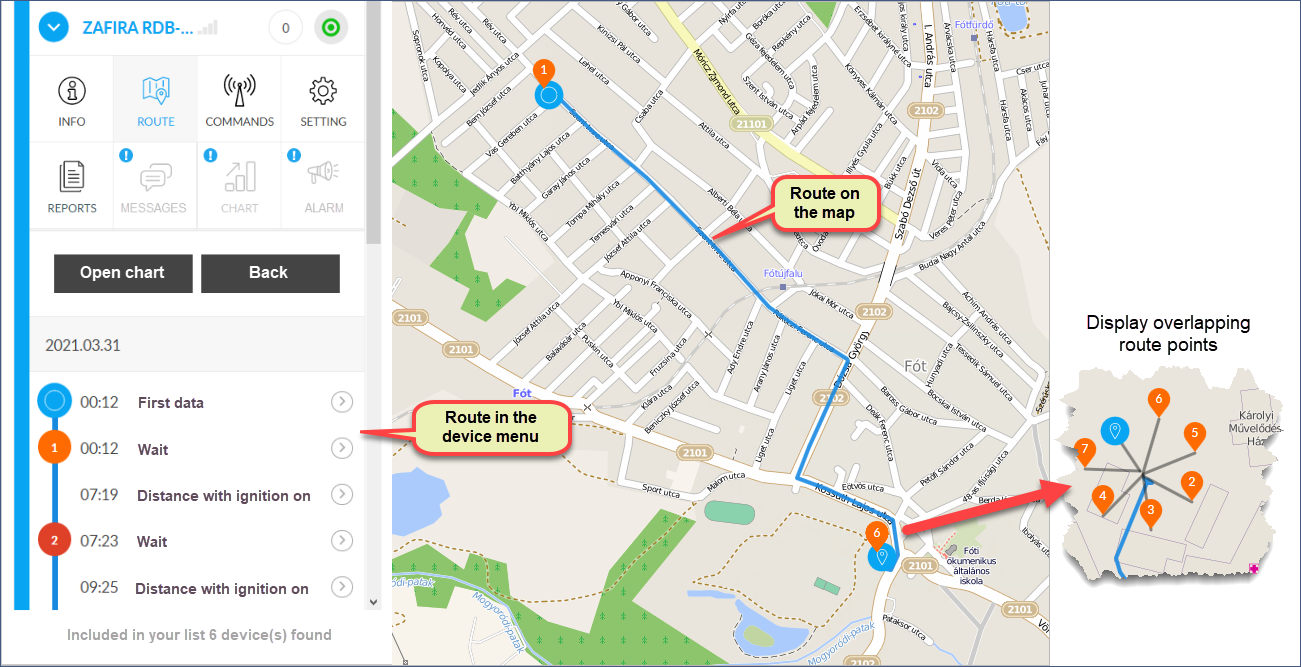
If many event points are crowded in a smaller area, the system will „jump” the points by maximizing the map and hovering the mouse pointer over the event points.
Below you can get detailed information about the route, its points and sections both on the map and in the Tools menu. It is also possible to track changes in device speed, engine speed, altitude, fuel level, and distance traveled as a whole or in connection with individual waypoints during the route.
From the route view, you can use the Back button to return to the multi-device map view, and the Open chart button to display various graphical statements related to the route.