
Felhasználói eszközök
Journey-form
The user log provides information on the journeys made by the selected device or devices during a specified period, including:
- route events and sections,
- the points concerned (places, addresses), and
- summaries of these.
Parameters
In order to prepare the report, we must specify for which assets, for what period, where and with what content we request the statement.
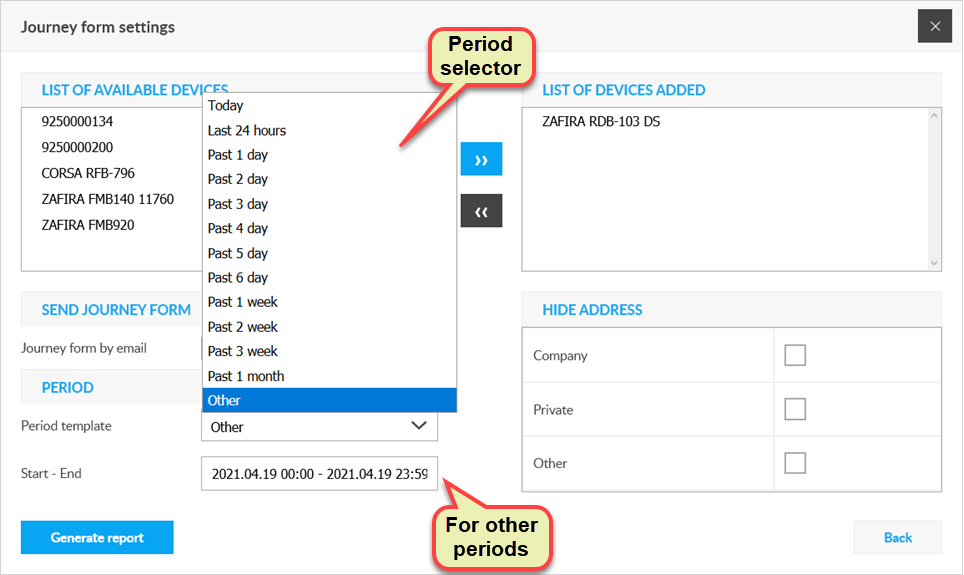
Select device(s)
The form will be created for the selected device. You can add the desired device to the selected list by double-clicking on the List of available devices list on the left or by selecting it with the right arrow. You can select several devices - in this case the timetable will be created separately for each of them.
You can remove a device from the selection list by double-clicking on it or by selecting the left arrow after selecting it.
Set period
Hide / show address
The use of a device (typically a device installed in a vehicle) may be tied to driver cards. Then, depending on the purpose for which the device is used (vehicle), the corresponding card must be inserted in the GPS device. The journey form distinguishes each section of road according to the cards and the purposes for which they are used. However, for some uses (typically private use), it may not be necessary to include personal data in the journey form - such data may be e.g. the addresses affected by the route. When setting the parameters, you can control here what type of use the address data is displayed on the timetable and in which cases not.
If you check the box next to a card destination, the address information will also appear in the form for road sections for that purpose.
The basic settings for displaying personal data in statements can be found in the Drivers and Cards System Settings group (Card Usage Purposes).
Card-based settings only apply to devices that are ready to use the cards!
The journey form
When the report is completed, the timesheet will appear on the screen.
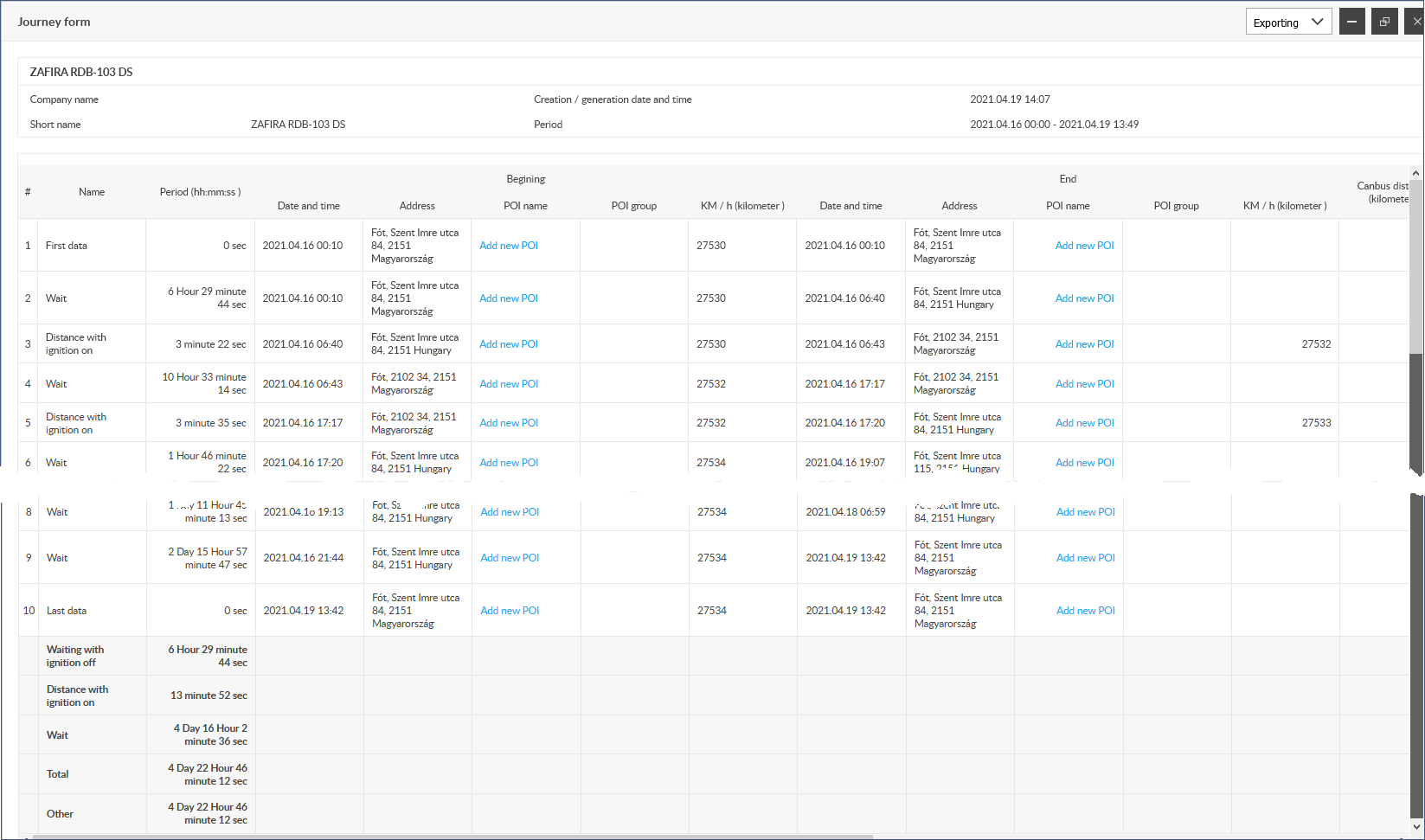
Contents of the journey-form
The header of the journey form contains the identification data of the device and the maker, as well as the parameters specified for the creation. In the next section, in tabular form, you will find detailed information about the route taken.
Table columns
- Name: Route waiting points or sections.
- Duration: Time spent at waiting points or during the journey.
- Start
- Date, time: Start of waiting or procession.
- Address: The address of the starting point of the wait or journey.
- POI name: If the address is also a POI, its name. In case of screen display Here it is also possible to switch POI afterwards by clicking on the Add POI link.
- POI group: In case of a POI, the name of its grouping.
- End
- Date, time: End of wait or journey.
- Address: If you are traveling, the (arrival) address of your endpoint.
- POI name: If the address is also a POI, its name. In the case of a screen display, it is also possible to switch POIs later by clicking on the Add POI link.
- POI group: In case of a POI, the name of its grouping.
- Distance: In the case of a driving section, its length.
- Max. speed: Maximum speed reached during the journey in the section.
- Average speed: The average speed for a driving section.
- Name of person: Name of the driver of the device (vehicle) if a driver card is used.
- Purpose of use: In case of using a driver card, name of the type of use (private, company, etc.).
Below the detailed table are summary data for distance and speed.
Export options
You can also save the form to Excel or PDF files.
Nyomkövetés könnyen és hatékonyan


