
Felhasználói eszközök
Sending commands
In some cases, you may need to communicate with your GPS device. This is made possible by the Send Commands feature, which can be accessed by clicking the Commands icon on the toolbar of the selected device.
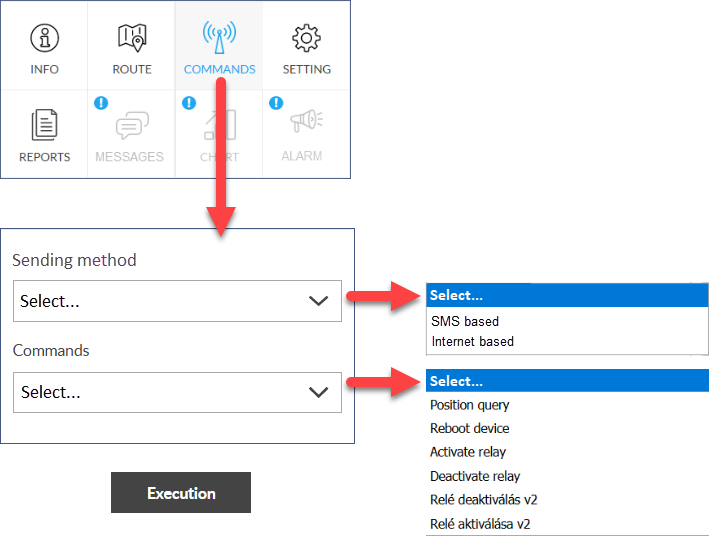
Commands can be sent to devices via SMS or the Internet. SMS mode means sending the usual SMS messages to the phone number of the device's SIM card, while Internet mode sends the command to the data traffic of your computer or phone. The two modes are usually not alternatives to each other: there are commands that can only be sent in SMS and some that can only be issued in internet mode. Whenever possible, you should use Internet-based commands because SMS comes at a separate cost.
The purpose of the commands may be to change the operating settings of the device or to initiate the execution of an immediate function.
It is important to know that the commands allow you to change the settings that affect the operation of the device itself, not the tracking software. The latter can be done under general system settings.
Steps to send the command:
- Select the sending method.
- Select the command. The content of the list of selectable commands depends on the selected sending method and the type of device (vehicle tracker, person tracking clock, animal tracking device, etc.).
- If both selections have been made, the Execute button will appear, clicking which will command the device to exit.
- It takes about 1 minute to send the command, receive and execute it by the machine, and then return the result of the command transmission.
Command parameters
There are commands that need to be accompanied by data. In this case, after selecting the command, you still need to fill in the form that appears before sending. The content of the data sheet depends on the nature of the command. The data that may be related to the command can be entered on the data sheet by selecting from lists, entering it manually or using other aids (eg a clock sheet).
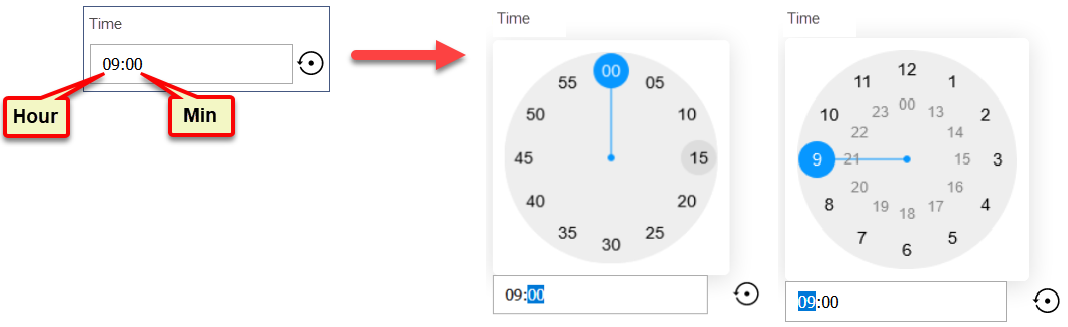
Example: entering a time using a clock sheet.
On the datasheet, click the hour or minute portion of the time field. The clock or minute setting version of the clock face is displayed. In the clock face that appears, select the desired numeric value. To enter the other value, click the appropriate time field again.
Nyomkövetés könnyen és hatékonyan


