
Felhasználói eszközök
Edit Device Information
The data for the selected device has been grouped. To view or change individual data, tap the data group - the data sheet with the data belonging to the group will appear.
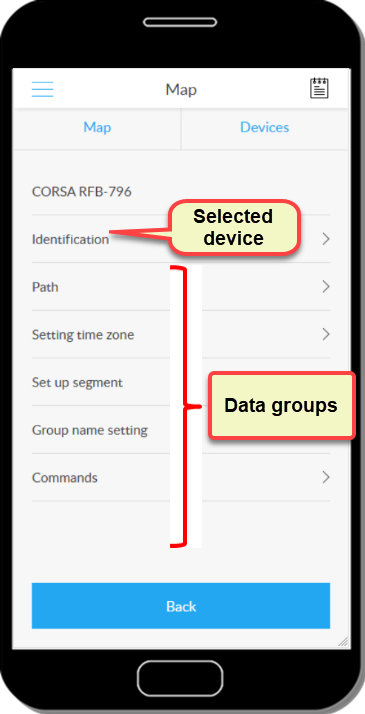
Identification
We have two features to identify devices: Name and Identifier.
Name
Any text, on data sheets, statements.
Identifier
Any text, in addition to datasheets and statements, is shown on the map next to the device icon (if Show on map is turned on). It is advisable to choose its value in such a way that we can immediately decide whose position we see at the moment (eg license plates in vehicles, their names in people or animals).
Show on map
When enabled, the ID will be shown on the map next to the device icon.
Display with group color
When enabled, the color of the device icon is the same as the color of your group - so you can easily distinguish between different device groups on the map.
Trail
During the map display, the currently moving devices are called they can draw a trail after them. You can set whether this is visible when and for how long, and whether the system collects data about trail points.
Trail length
When displayed, how long the trail should be. By trail length we mean the number of points from which GPS position data was received.
Show trail
Turn the route display on the map on or off.
Trail point information
GPS data transmission points may or may not appear on the trail after the vehicle.
Trail on the move only
The route should only be visible when the vehicle is in motion, or the map should show the last section in motion when the vehicle is stationary.
Device time zone
You can set which time zone the device takes into account when processing the data of the tracked device (in which time zone the device is located). The system maps the time data sent by the device to the values corresponding to our (observer's) time zone if it is set correctly.
Time zone
The value selected from the list represents the offset from UTC to the east or west.
Segment setting
Vehicle-specific settings of the GPS device.
Minimum speed
The minimum speed to which the system must already respond should be considered motion. When setting, be aware that due to errors in GPS-based measurements, it may be possible to indicate movement even with a stationary object if this value is taken too low.
Waiting time
The amount of time that elapses after the object stops, then it should be considered as a wait. If you take it too short, you may already be waiting for a stop at a red light.
Degree of displacement
The minimum displacement distance to which the system must already respond. When setting it, be aware that due to errors in GPS-based measurements, it may also indicate displacement for a stationary object if this value is taken too low.
Group setting
Here you can specify in which group you want to classify the vehicle.
Group name
From the group list that appears, select the group to which you want to assign the device.
Commands
The Commands group works significantly differently than before. The previous settings were used to modify the device data stored in the Service Provider's register, but here we can send instructions directly to the GPS device, to which it responds by performing certain operations or with its own settings.
Usage
From the Commands drop-down list, select the appropriate command and click Submit. The system sends the command to the device, which, if it is in the correct operating state, executes it and we receive a response from the result. Execution and receipt of the response takes more or less time, depending on the nature of the command.
The commands will be sent to the device via SMS or Internet message, depending on your choice. In the case of the SIM card provided by FlexCom Kft for the GPS device, the SMS frame is 15 pieces. If this is exceeded, the cost of additional SMS is borne by the user. In the case of my own GPS device card, the cost of all SMS is paid by the user.
Commands that can be issued
Diagnostics
Answer: The operating status of the GPS device (whether it is switched on, does it see satellite and how much, GSM connection status)
Position query
Answer: The coordinates of the GPS device.
Relay activation / deactivation
Activate or deactivate the immobilizer.
Schedules
Here you can specify whether the GPS device sends data or not, and if so, how often.
The GPS device sends back responses to the execution of the commands, which can be viewed in the Event Log.
Nyomkövetés könnyen és hatékonyan


