
Event information
After querying the route, the points will also appear in the Events panel. Tap a point in the list to get detailed information.
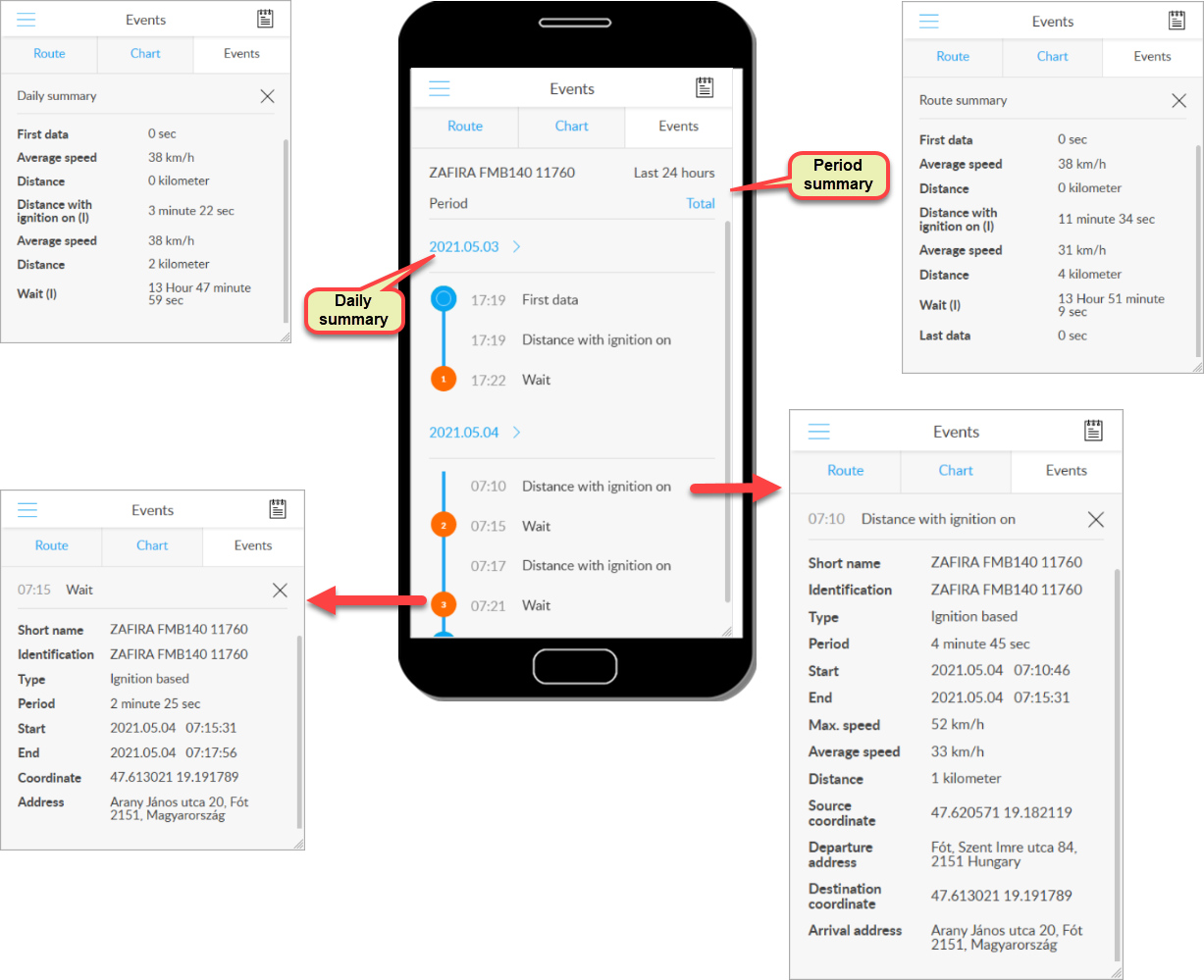
The meaning of the points
In the panel, the route is described by waiting points, the sections between them, and related information. Because a route is a trip in a specified time interval, the start and end points (First data, Last data) are not necessarily linked to an event - they indicate the map points that are closest to the beginning and end of the period, respectively.
Between the start and end points, there are waiting points, position entry points and travel sections. Waiting points are points where the device carrier was standing. For motor vehicles, we distinguish between non-ignition (orange icon) and ignition (red icon) waiting. In the former case, the vehicle was stopped and the ignition was switched off, in the latter case it was also stopped, but the engine was running.
If the Point information option is enabled when entering the query parameters, in addition to the waiting points, the system displays all the points (arrows) from which the GPS device sent data to the control panel at all. These are linked to coordinates and some other basic data, and their role is mainly to draw the route as accurately as possible.
Route information in the Events panel
In the Events panel, road sections are marked with the term Travel. If you tap on such a thread, your details will be displayed. To return to the event list, close the profile with the X icon.
Aggregate data
You can also get aggregate information about the route of the query period. Because the query can span multiple days, the event list is broken down into days. Aggregates can be requested for days or for an entire period.
Daily Summary
The daily summary can be obtained by tapping the dates that divide the list into days. Here you can see the aggregate (eg distance and travel time) and average values (eg average speed) for the day.
Period summary
You can get the summary of the period by tapping Summary above the list. Here you can see the total and average values for the entire query period.
Tracking easily and efficiently


