
Table of Contents
User's guide
Transport and storage
The packaging is designed to protect the product from the usual physical effects during transport. Be careful to avoid effects other than these.
The packaging of the product is not water, flame and heat resistant and only moderately pressure resistant. Therefore, do not keep the box in a humid environment, within the range of heat emitting equipment, or place heavy objects on it.
Commissioning
The package consists of a box containing the device and its accessories.
Unpacking

- Open the box.
- Remove the product and accessories.
 |
1 tracking device |
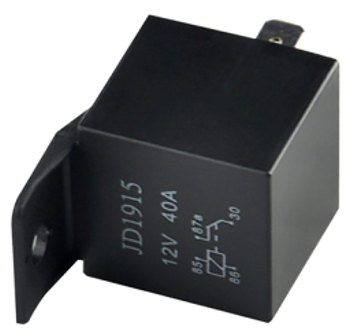 |
1 relay (for motor blocking) |
 |
1 db jármű csatlakozó kábel |
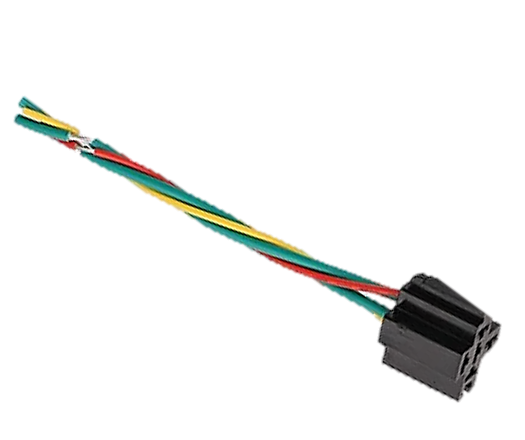 |
1 relay connection cable |
 |
1 double-sided adhesive sheet for fixed fixing |
 |
1 installation instructions |
Preparing the SIM card
As with mobile phones, a SIM card is required to operate the device. The device communicates with the mobile service provider's network via SIM card, SMS or mobile phone or PC applications.
You can purchase the card independently from your mobile service provider or, in the case of a software subscription, from your product distributor. If you received the SIM card from your dealer, you do not need to make any settings: the card is already set up, inserted in the device, switched on and ready for use.
If you have received the SIM card from your dealer, do not try to transfer it to another device (eg phone) and use it! The distributor (service provider) will reimburse the resulting costs or the correction of the resulting errors.
Settings for your SIM card
If you did not obtain the SIM card from your tracking device vendor, you must set it up before inserting and using it in the device, which you can do as follows.
Disable SIM card PIN and other functions
- Insert the SIM card in your phone.
- Among the setting functions of the phone
- turn off the PIN code request, auto-reply and call forwarding options.
After turning off the above, insert the card into the tracking device. See the next section for instructions on how to insert the SIM card.
Setting up data traffic
If you want to operate the device not only via SMS, but also e.g. If you use the software tracking service provided by your dealer, you must activate GPRS (Internet) data traffic and enter the appropriate network settings. To do this, you need to send SMS messages from your phone to the phone number of the SIM card inserted in the tracking device, as shown in the table below.
The factory-set access password for the tracking device in the commands: 123456
| Setting | SMS message | Device response |
|---|---|---|
| Turn on GPRS data traffic | gprs123456 | GPRS ok |
| Enter the APN name | apn123456(space)APN-name | apn ok |
| APN names for domestic service providers in Hungary:
Telenor: online vagy net Telekom: internet Vodafone: - in case of subscription: internet.vodafone.net - in the case of a top-up card: vitamax.internet.vodafone.net Digi: internet |
||
| If your mobile network provider has not provided you with an APN username and password, you do not need to send the following SMS messages to the tracking device! | ||
| APN username | apnuser123456 APN-username | apnuser ok |
| APN password | apnpasswd123456 APN-password | apnpassword ok |
Inserting the SIM card
Only micro-sized SIM cards can be used with this product. If you have a nano SIM, use a card adapter.
Insert the SIM card into the device as follows:
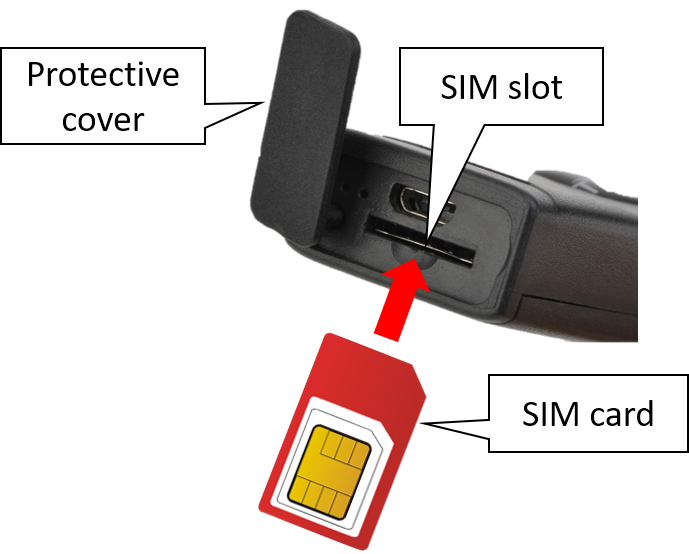
Steps:
- Open the cover of the SIM card slot.
- Insert the card into the slot. The device turns on and the LED lights up when the card is inserted. Be sure to insert the card in the correct position.
- Close the protective cover.
Installing the device
It is advisable to have the installation carried out by a specialist. Do not install the device in an environment that shields the GSM network, and be sure to adjust the antennas to provide the strongest possible reception. Select the installation location so that the device does not come into contact with dust or water during operation.
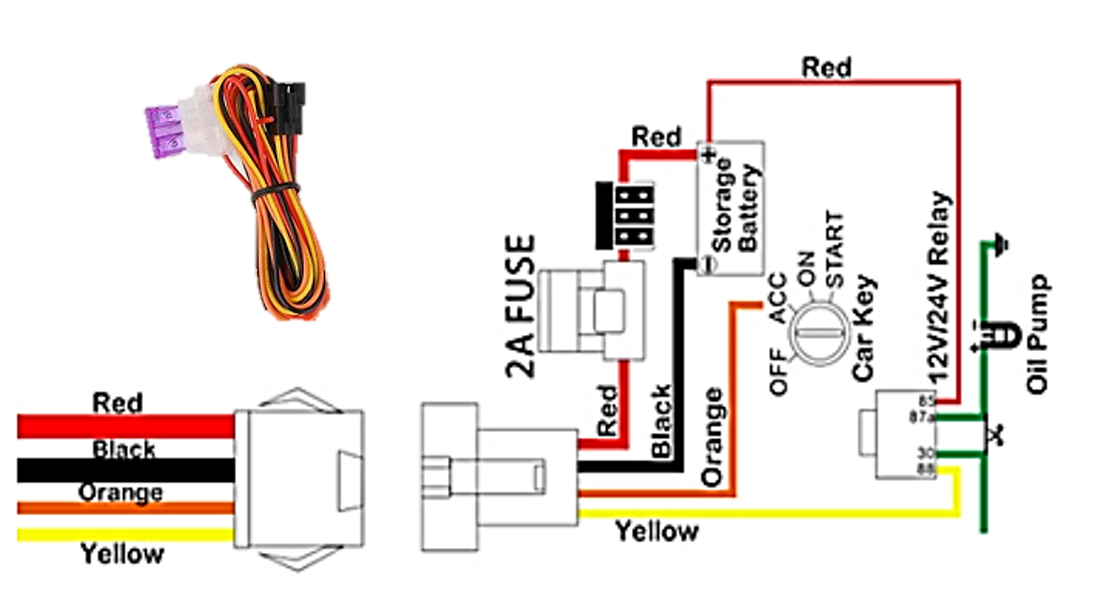
Using the wiring harness, connect the wires to the original car circuit as follows:
| Wire | Function |
|---|---|
| Red | Positive pole |
| Black | Negative pole |
| Orange | Ignition |
| Yellow | Relay |
Application installation, access
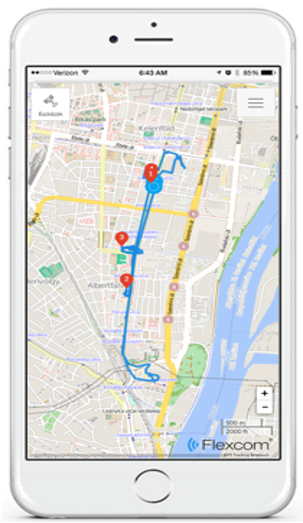
In order to operate the device and other services based on it, the distributor provides mobile and computer applications in the subscription system. The PC program is accessible via a browser at https://gpspositions.net/map/, and you can install the phone application on your phone in one of the following ways:
For Android phones

- Open the Google Play app on your phone.
- Search for “Flexcom” or “Flexcom tracking” on Google Play.
- Install the tracking application.
or
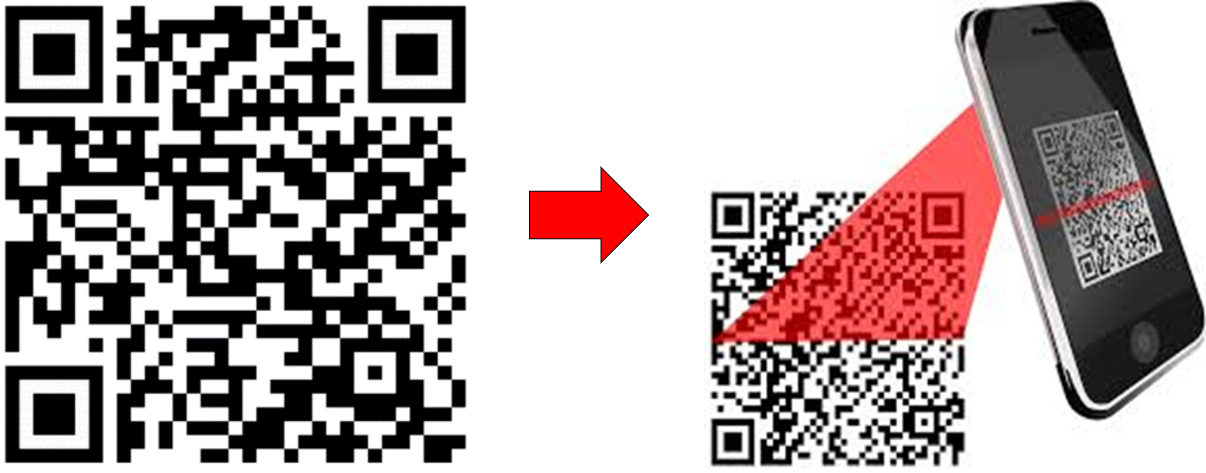
- Scan the QR code shown here with your phone.
- Open the web address decoded from this.
- Install the Flexcom tracking application.
For iPhones
Use the browser on your phone to access the service (https://gpspositions.net/map/).
Using the product
User Interface
The device does not have a traditional user interface (eg on / off button). An LED indicator informs the user about its operation and status. In addition, only the charger connector, the SIM card slot and a carrying strap can be connected on its surface.
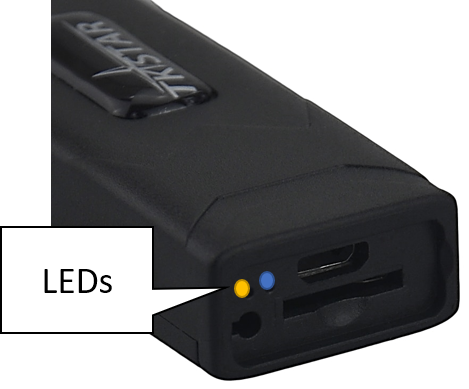
LED display statuses
| Display | Status | |
|---|---|---|
| Solid yellow | No mobile network connection | |
| Flashing yellow | Connected to a mobile network | |
| Solid blue | No satellite connection | |
| Flashing blue | Connected to a satellite network | |
Internal battery
The device has a built-in battery, which has a small capacity and is mainly used to bridge the temporary disconnection of the vehicle. When connected to a vehicle, the battery is charged, and if disconnected, it can be charged using a phone charger and a USB cable.
A cable with a micro type USB connector can be used to charge the device.
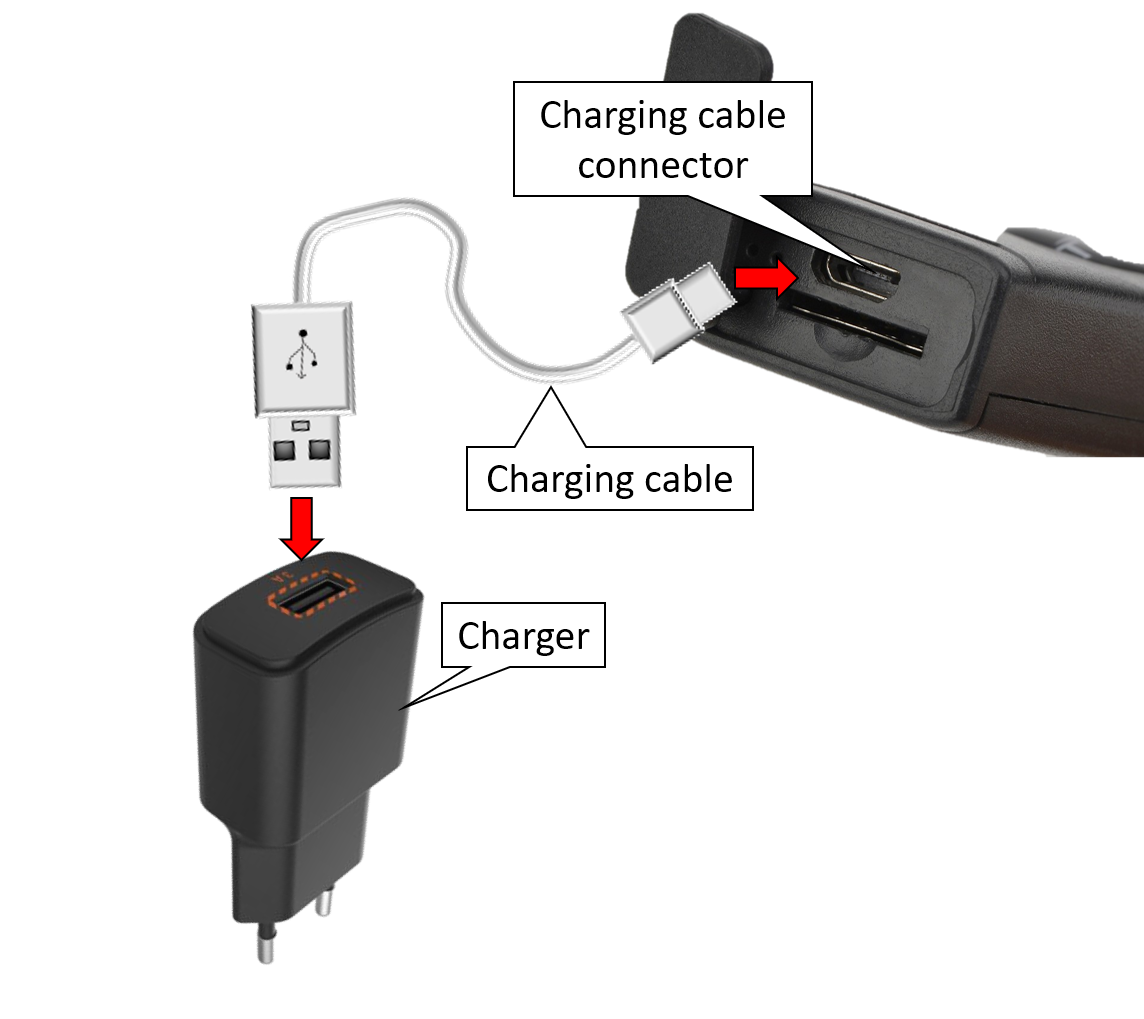
When the battery is fully charged, disconnect the charging cable. The device does NOT have overcharge protection, so keeping it on a long-term or continuous charger (eg connecting to a vehicle battery) will shorten the life of the device or, in worse cases, damage it. For the device with a voltage of 5V 1 Use a charger that provides current. Chargers with a higher capacity can damage the battery.
The device operates continuously when connected to a vehicle. Powered by its own battery, its operating time is approx. half an hour.
Switching on and off
The device switches on automatically when you insert the SIM card, and switches it off when you remove it. It does not have a separate on / off button.
Normal operation of the device
Setting options via the software
When using the desktop or mobile application of Flexcom Kft, the setup operations related to tracing can be accessed in the following ways.
The settings and commands that can be issued depend on the type of device. See the rest of this guide for information on options for this device.
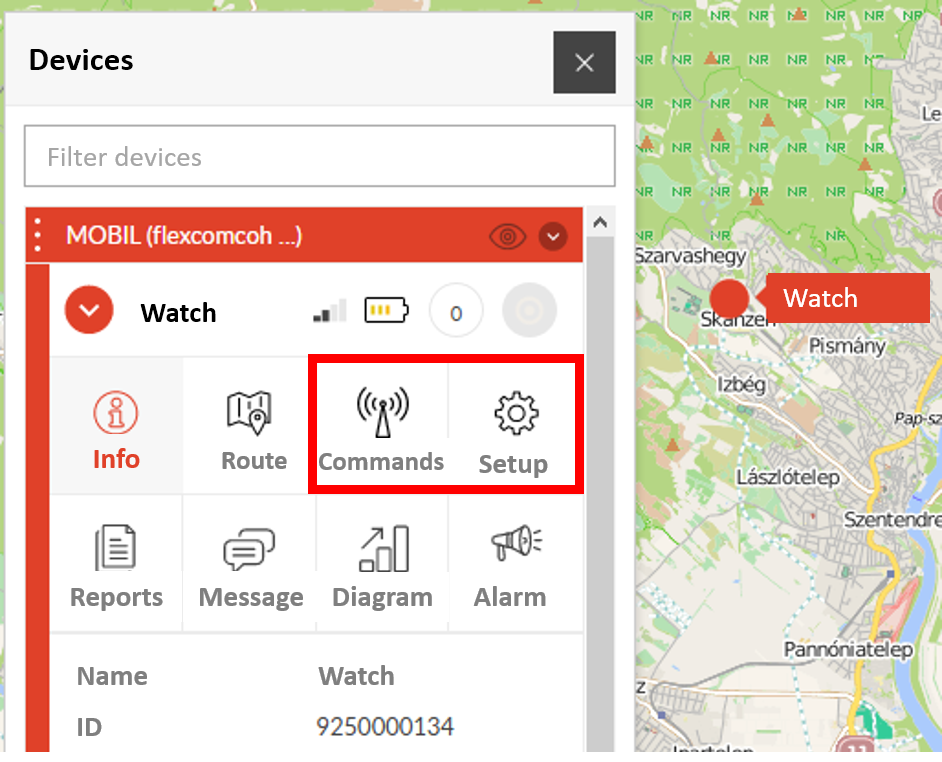
When using a desktop application:
|
Select the desired device on the map or in the menu.
Click the Settings or Commands button to select the general setting or behavior you want. |
 |
When using a mobile application:
| From the application menu, select Map. | 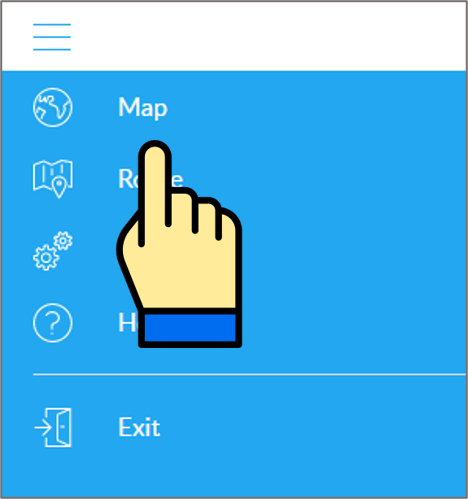
|
| Switch to the Tools panel. | 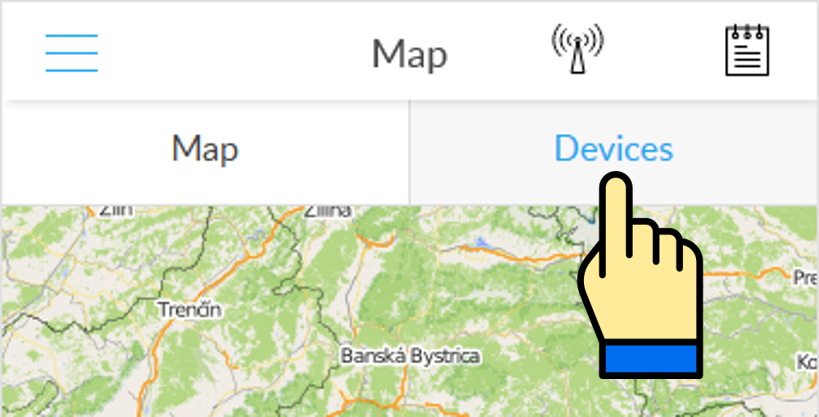
|
| Find your device in the list of devices and tap the Setup icon next to the ID. | 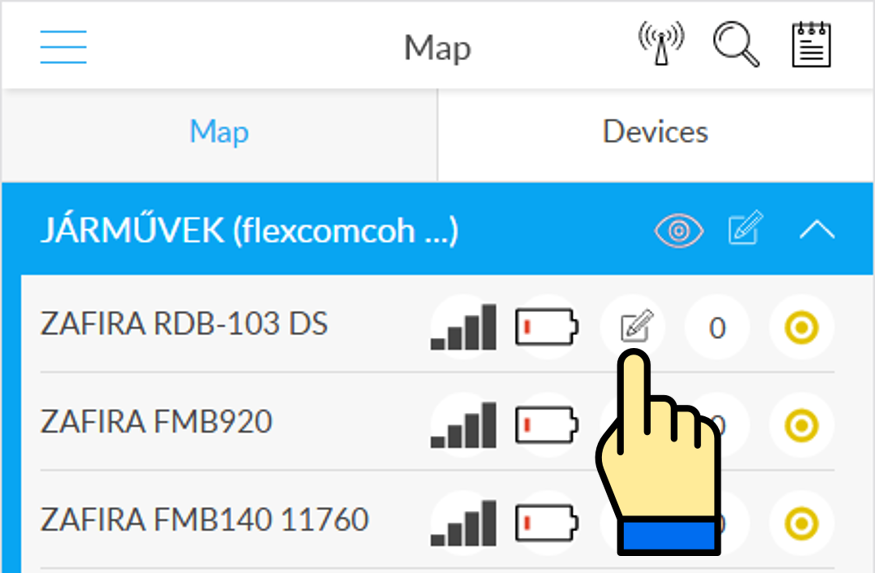
|
| Select the desired setting or, when sending a command, select Commands. | 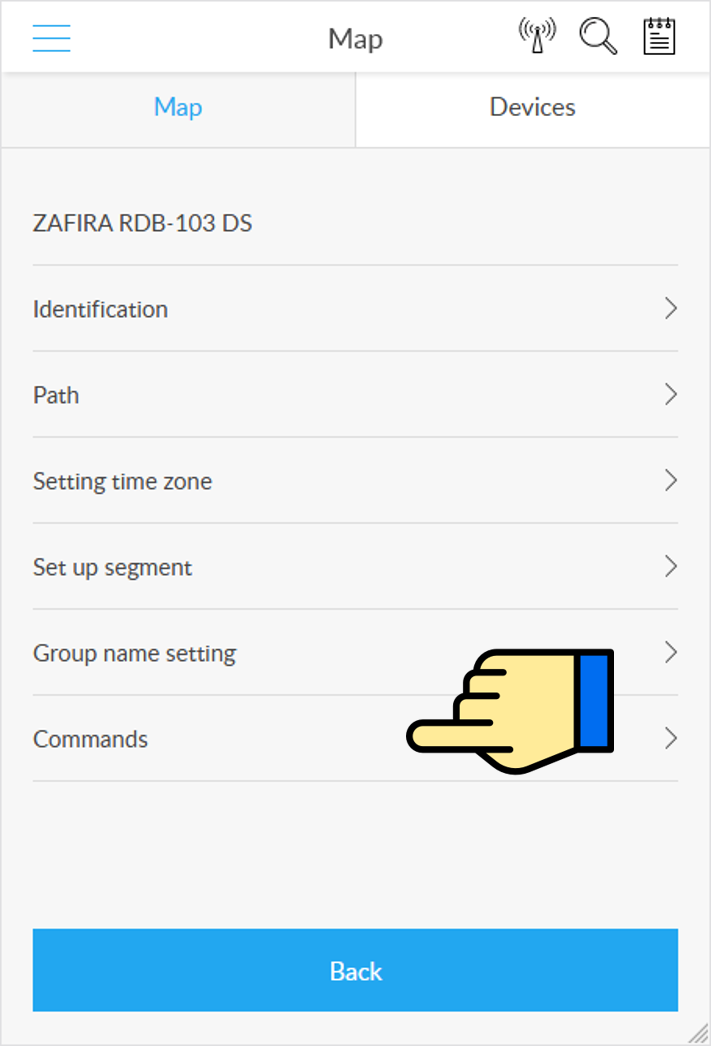
|
Control the device with SMS commands sent from a mobile phone
The factory-set access password for the tracking device in the commands: 123456
General settings
| Function | Description | SMS message | Device response |
|---|---|---|---|
| Restart device | You can also switch the device on and off from your phone without moving the SIM card. |
begin123456
|
Begin Ok |
| Administrator phone number | After setting the administrator phone number (s), the device only accepts calls and SMS commands from this number (s) and sends alerts to this phone number (s). Up to 5 such phone numbers can be set on the machine. After setting the first phone number, further ones can only be entered with SMS sent from this number. |
admin123456 phone number

Például: admin123456 0036709876543
Use to enter the phone number
country code prefix (eg 0036, Hungary).
|
Admin Ok |
| Delete administrator phone number | Delete a previously set administrator phone number. |
noadmin123456 phone number

For example: noadmin123456 003612345678
|
Admin Ok |
| Set time zone | The device's default time zone is set to GMT + 0. This is changed (eg in the case of Hungary, the time zone is GMT + 1), as follows. |
timezone123456 value (where value e.g. +1, -2, 0 etc).

Például: timezone123456 +1 (Hungarian time zone
setting)
|
Time Ok |
| Turn GPRS mode on and off | The GPRS data transfer mode is switched off by default in the device (GSM mode is active). If you use tracking software, the GPRS mode must be turned on.
If you have purchased the device with a software service subscription from the dealer, the GPRS mode is already activated! |
Turning on
  SMS: gprs123456

Turning off
  SMS: nogprs123456
|
GPRS Ok or NOGPRS Ok |
Query the position of the device
| Description | Device response |
|---|---|
| Call the phone number of the device's SIM card from your phone. After receiving the call, the device interrupts it and then sends the data back in an SMS message: latitude and longitude, current speed, time and link, which, when clicked / tapped, will display the device's indicator on the Google map in our phone's browser.
If the device cannot connect to GPS satellites (eg inside a building or in another shaded area), use the cell information of the GSM transmission towers to determine its position (LBS, Location Based Service). Its accuracy depends largely on the distance from the towers and the mobile network coverage. |
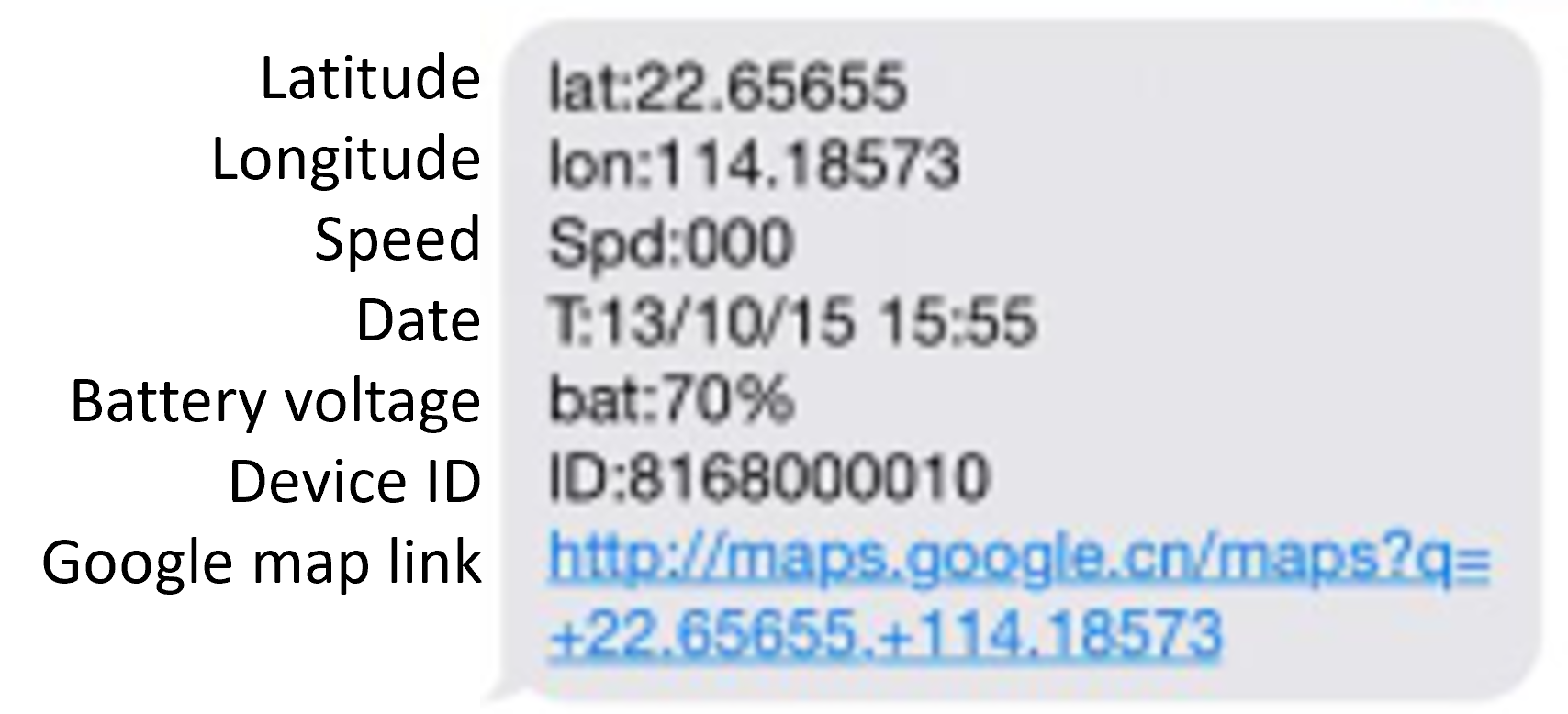 or LBS-based positioning or LBS-based positioning 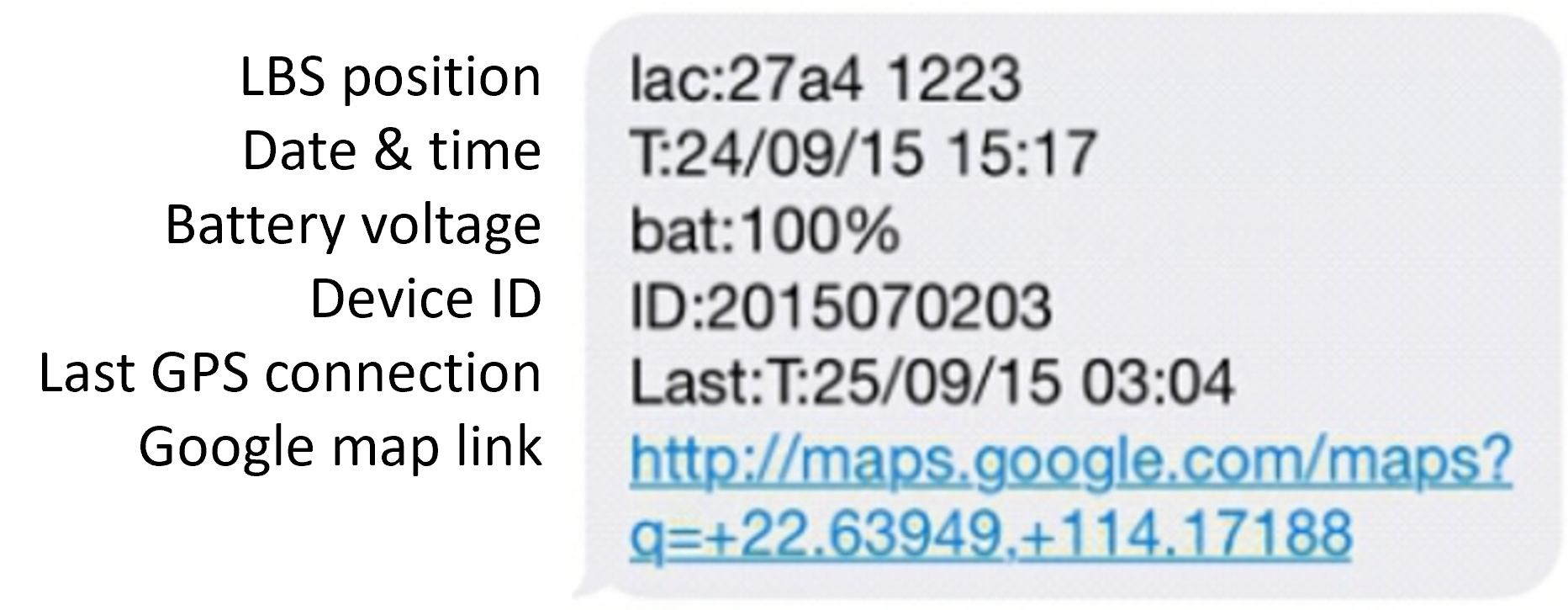
|
Stopping the vehicle remotely
| Description | SMS message | Device response |
|---|---|---|
| Once the device is connected to the vehicle, you have the option of stopping it remotely and preventing it from restarting. |
Activate: stop123456

Once activated, the device will block the vehicle until the following unlock command is sent:
resume123456

Deactivation and return to trace mode:
SMS: tracker123456
|
Stop Ok, Resume OK or Tracker Ok |
Removal alarm
| Description | SMS message | Device response |
|---|---|---|
| Send an alarm to the phone when the device is removed from the vehicle. This feature is turned on by default. |
Turning on: remove123456 XXXX

Content of the alarm message: „Remove alarm!”.

Turning off: noremovel123456
|
Remove OK or Noremove Ok |
Speed alarm
| Description | SMS message | Device response |
|---|---|---|
| You can set the device to send an SMS alert if the vehicle speed exceeds the specified limit. The speed limit must be given in the form XXX, if less than 100, the leading zero must also be written out (eg 070). |
Turning on: speed123456 sebességhatár

For example: speed123456 070

Content of the alarm message: „Speed alarm!”

Turning off: nospeed123456
|
Speed Ok or Nospeed Ok |
ACC alarm
| Description | SMS message | Device response |
|---|---|---|
| The device sends an alarm to the phone when the vehicle is started. |
Turning on: acc123456
Content of the alarm message: ACC on!”

Turning off: noacc123456
|
ACC set Ok or Noacc set ok |
Tracking easily and efficiently


