
Enter POI data
The details of the POIs are entered in the POI setting data sheet both for a new recording and for modifying an existing POI. The data are grouped according to their role, significance and impact:
- Type
- Location and size data
- Descriptive data
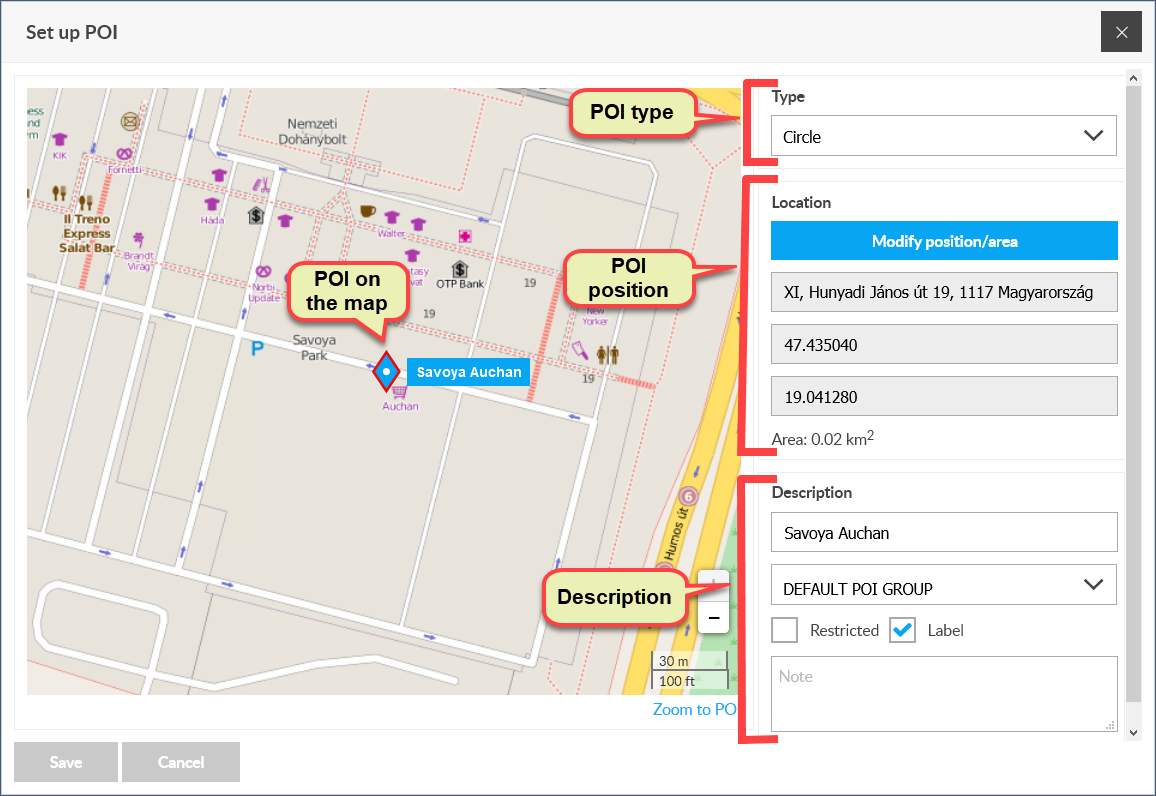
Type of POI
The type determines the destination of the POI. With a fence-type POI, you can define an area of any shape on the map, while a point-type POI supports the selection of a specific map point. When you create a new POI, a point type POI is created by default.
Location of POI
POI location means the map position of the POI center. The location of the center is given by latitude and longitude coordinates. When you create a POI, the new POI is placed either in the center of your map view or at the selected map point, depending on how you initiated it. We then have the opportunity to change this position.
Comment
If you modify an existing POI, you must first activate the Modify position / area button. The button indicates the active status with a green background.
To move, you must first select the POI (this is not necessary when adding a new POI). To do this, either left-click on the POI marker on the map or open the POI panel, search for it in the list and click on it. The color and framing of the selected POI change.
Enter position on the map
Left-click on the POI marker created by the system and displayed on the map, and then while holding it down, drag the marker to the desired location.
Enter POI position on profile
There are two ways to set the location of a POI on the profile: enter an address or enter geographical coordinates.
Enter position by entering address
- Enter an address in the Address field (eg Budapest, Teréz krt 10.
- We wait 1-2 seconds for the system to look up the address in its register. If you find it (there may be more than one match, depending on how many points you have entered), it will display the results in a list from which you can choose.
- Select the address from the list.
- The system moves the POI marker to the appropriate location on the map and also displays the coordinates in the appropriate data fields.
If the address you entered cannot be found, no address list will appear from which you can choose.
Enter position with coordinates
- Enter the appropriate values in the coordinate (latitude and longitude) fields.
- NOTHING HAPPENS HERE!
Shape and size of the POI
The most important information about POIs is their location (coordinates) and size. You can set the location of the POI on the map (by holding down the left mouse button on the POI icon) or enter the address or coordinate data on the data sheet.
In the case of a fence-type POI, you can change its shape and size (by dragging the mouse mouse button next to the corresponding marker).
Options:
- change shape with markers on the POI border,
- scaling (with larger dashed square corner point markers in the enclosure),
- rotation (with a marker near the top of the larger, dashed rectangle of the enclosure).
- Zoom to POI (focus on POI at maximum magnification)
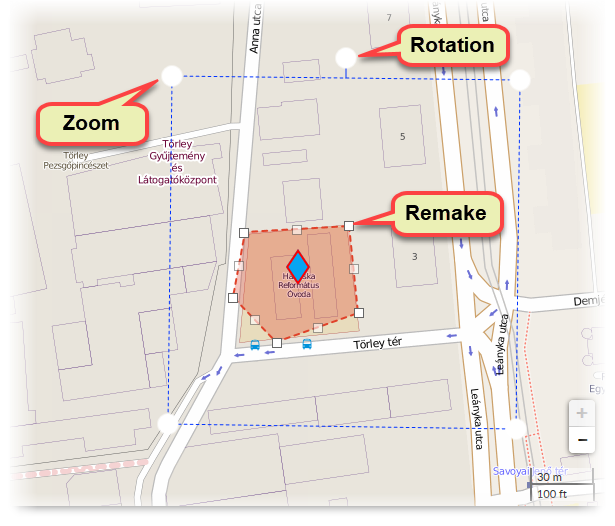
Changing the shape of a POI can cause the center point to shift, so the location of the POI can change!
Descriptive data
With the descriptive data we can determine the identification, appearance and classification of the POI, and we can add additional information to it.
- Name: the name of the POI, which can also appear on the map as a label.
- Grouping: POIs can be grouped. You can create POI groups using the Register POI groups function in the POI submenu of the menu.
- Disabled: If the GPS device reaches a point or area defined by the POI and this field is enabled, the system will send an email notification to the user.
- Tag: when enabled, the name of the POI will appear on the map next to the marker icon.
- Note: any text.
You can save the POI with the entered data by clicking the Save button.
Tracking easily and efficiently


