
Road sections
The device route is divided into road sections by waiting / departure event points. Like the points, you can get map and Device menu information for each road segment.
Information in the device panel and on the map
If you select a road segment on the map with the left mouse button (highlighted in red), the information about the segment is displayed in the tool panel. In the panel, road sections are marked with the term Travel.
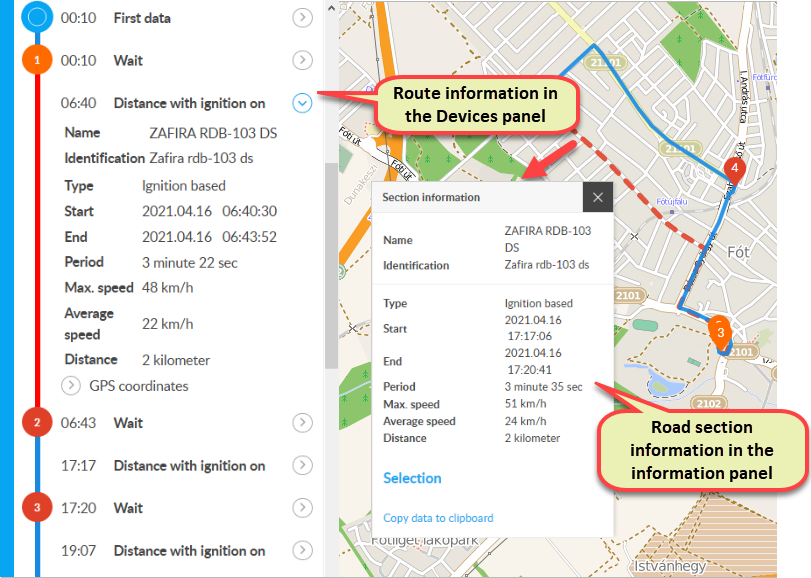
If you open the list of GPS coordinates below the road segment data, you can also see a list of the times and locations from which the device sent position data, ie the route from which the route segment was drawn.
Clicking on the road section again will deselect it.
You can also get information about any road section without selecting it by left-clicking on the desired section. The section line will then be dashed and the section information panel will appear next to it.
The left mouse button selection and the right mouse button information request can be applied simultaneously to the same or (as in the image above) different road sections. In the latter case, we can see the data of two road sections at the same time. The panel can be dragged by its title bar and closed with the X button. Only one such panel can be displayed on the map at a time - which section it belongs to is indicated by the dashed line of the section.
Tracking easily and efficiently


