
Exporting POIs
The data of the POIs in our register can be downloaded from the system using the Export function in the System / POI submenu. The result is obtained in the form of an Excel spreadsheet within a compressed (.zip) file.
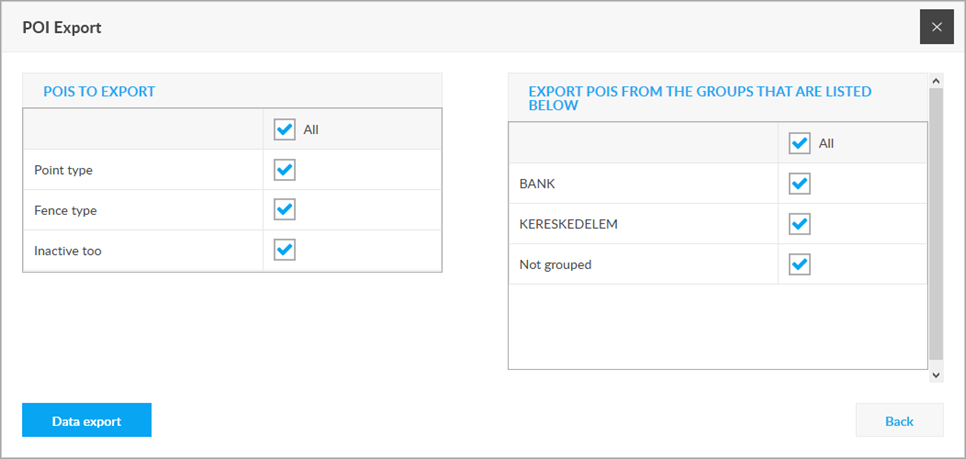
In the left panel, you set which part of the POI the download applies to - the download will include the POIs of the specified type, and whether or not the download will apply to the deactivated POIs. In the right pane, you can select which groups of POIs the download will be affected by. After entering the settings, you can download the result by clicking the Export data button.
By opening the resulting Excel spreadsheet, you can see the data of the downloaded POIs registered in the system.
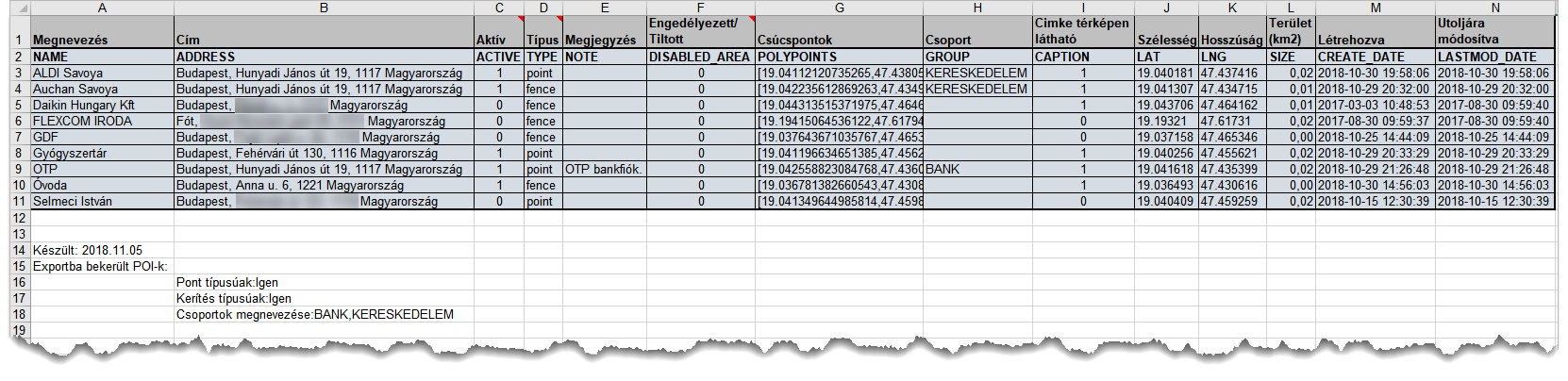
Reading the table
Rows
- row: Column names (contents).
- row: System names of the columns.
- - n. line: Details of POIs.
Below the data series: Download parameters.
Columns
- Name: The name of the POI (it will appear next to the marker icon on the map).
- Address: The address of the POI.
- Active: Status of the POI (active or inactive). Possible values: 1: Yes, 0: No.
- Type: The type of POI. Possible values: pointz: Point, fence: Fence.
- Note: Any description attached to the POI by the user.
- Disabled Area: The user has marked the POI as authorized or not to access.
- Polypoints: Coordinates associated with the POI. They are used for fence type POIs and denote the coordinates of the vertices of the area (polygon).
- Group: The group to which the user has assigned the POI.
- Caption: The name of the POI is displayed on the map next to the marker icon or not.
- Latitude, Longitude: The center coordinates of the POI.
- Size: The area covered by the POI shape, in km2. For point type POIs, its value is always 0.
- Created, modified: The date the POI was created or its data was last modified.
Some columns have help notes (in Excel: a red marker in the upper right corner of the header cell). These help you interpret the contents of the column.
The downloaded table is suitable for making various data changes to POIs for various individual uses and then uploading the changes back to the system. For information on changes and reloads, see Importing POIs.
Tracking easily and efficiently


