
Setting alarms
The software is able to send notifications (hereinafter: alarms) to the operator of the device about certain events that have occurred with the devices or are detected by them. Alarms can be set per device. For example, the following image shows how to set an overspeed alarm:
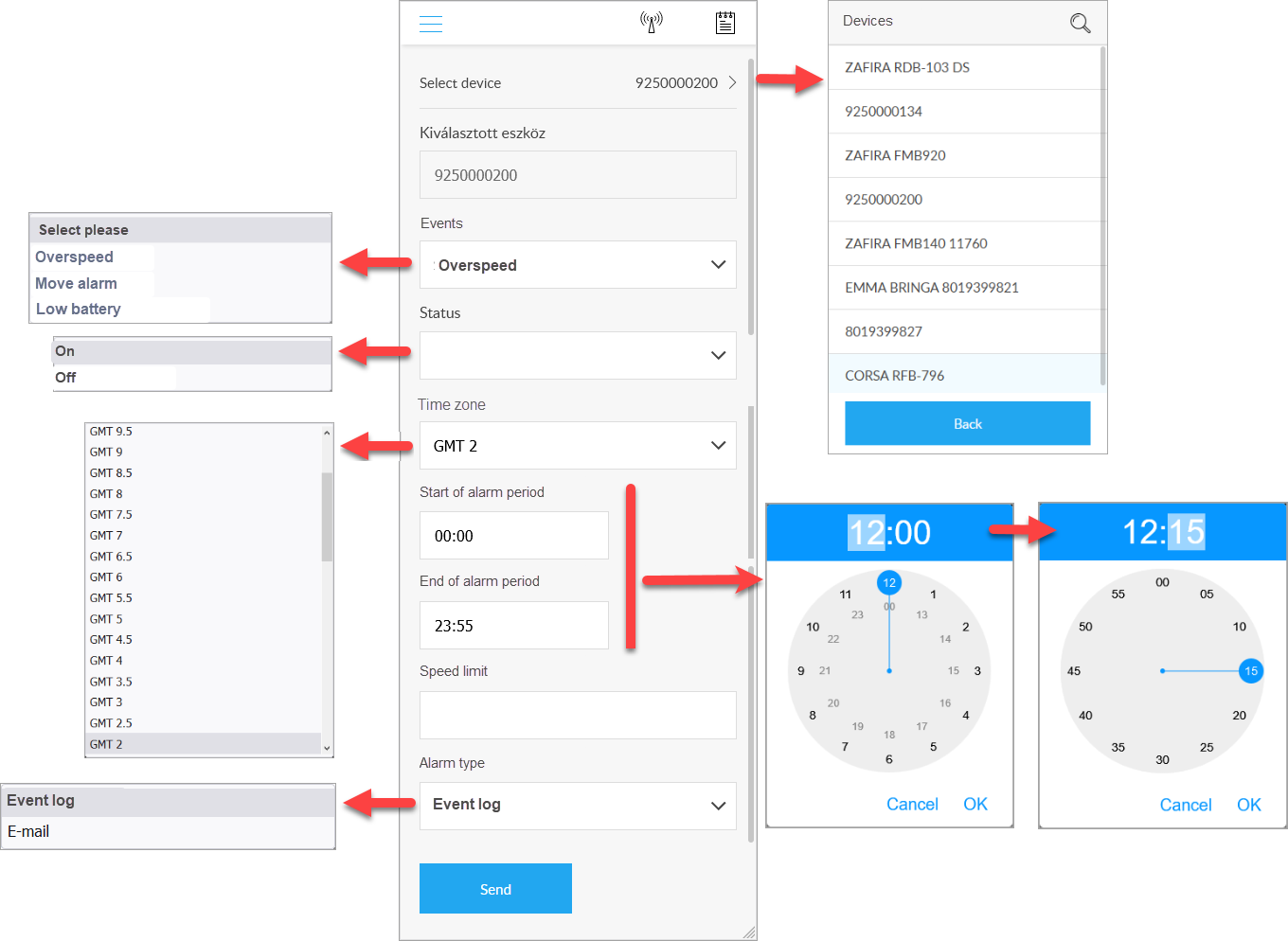
Steps:
- After selecting the device, click on the Alarm icon.
- From the event list, select the event at which we want to receive an alarm notification from the system. The alarm setting sheet for the selected event will appear.
- Enter the required data.
- When the Send button is pressed, the alarm setting is registered with the device. Indicates the success or failure of this.
Contents of the data sheet
The data sheet contains constant or variable data depending on the type of device.
Data for all alarm settings
Event: The name of the selected event.
Status: Whether the alarm is active or not. For example, if you want to pause an alarm, just deactivate the setting - you can simply reactivate it later.
Time zone: Depending on which time zone the start and end of the alarm period should be calculated.
Period: The period of the day during which the alarm is active. See also Setting the time on a clock
Alarm type: Specify where the alarm will appear - just log it in the event log (which can be viewed at any time) or send a separate notification email.
Event-specific parameters
Whether special information is included in the alarm setting depends on the nature of the selected event. In the figure, the speed limit alarm must obviously specify the limit above which the system must respond. Other types of events require other data or some that do not require additional parameters (eg alarms related to movement, vibration).
The selectable events and alarm options depend on the type and capabilities of the device and the additional equipment connected to it.
Tracking easily and efficiently


